Share a card
A card is a picture of your concerts that you can save or send. Make one for a band you love, or for a whole year.
How do I make a card?
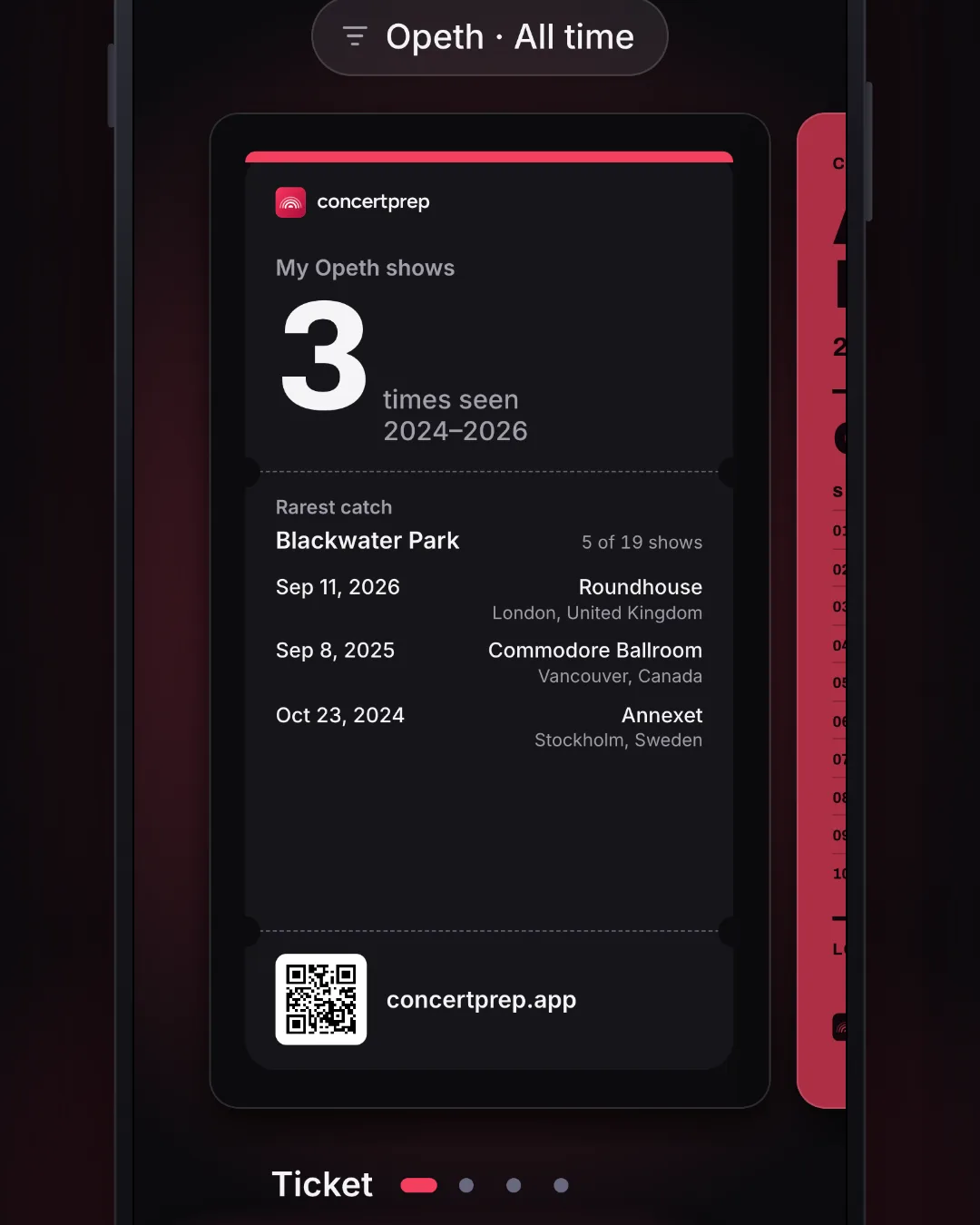
A silent clip. On My concerts, Share opens Share a card. All bands · All time at the top opens the filters, Opeth is picked under Bands, and Done closes them. The card becomes My Opeth shows: 3 times seen, the rarest catch, and the dates and places. The Numbers dot under the card turns it into the Numbers look: 3 times, and a bar for each year. Save image is tapped, and the card lifts out of the phone as the picture it becomes. The clip ends on the finished card. The shows in it are sample data.
- Tap Concerts.
- Tap the share button. It's at the top, next to +. On a computer it says Share a card.
- To pick a band or a year, tap All bands · All time at the top. Choose a band under Bands, a year under When, then tap Done. Or leave both as they are.
- Swipe the card left or right to pick how it looks. On a computer, you can also click the dots under it, or the arrows beside it.
The card changes as you pick. There are four looks: Ticket (the standard one), Poster (your bands as a festival bill, headed with your first name; for one band, the songs you heard), Numbers (your count and a bar for each year) and Places (a globe of your cities, once one of them is on the map). The dots under the card show which one you're on, and your choice is remembered. Every card has a QR code that opens concertprep.app: point a phone's camera at it, even on the saved picture.
You need at least one concert in My concerts to make a card.
What's the difference between a band card and a year card?
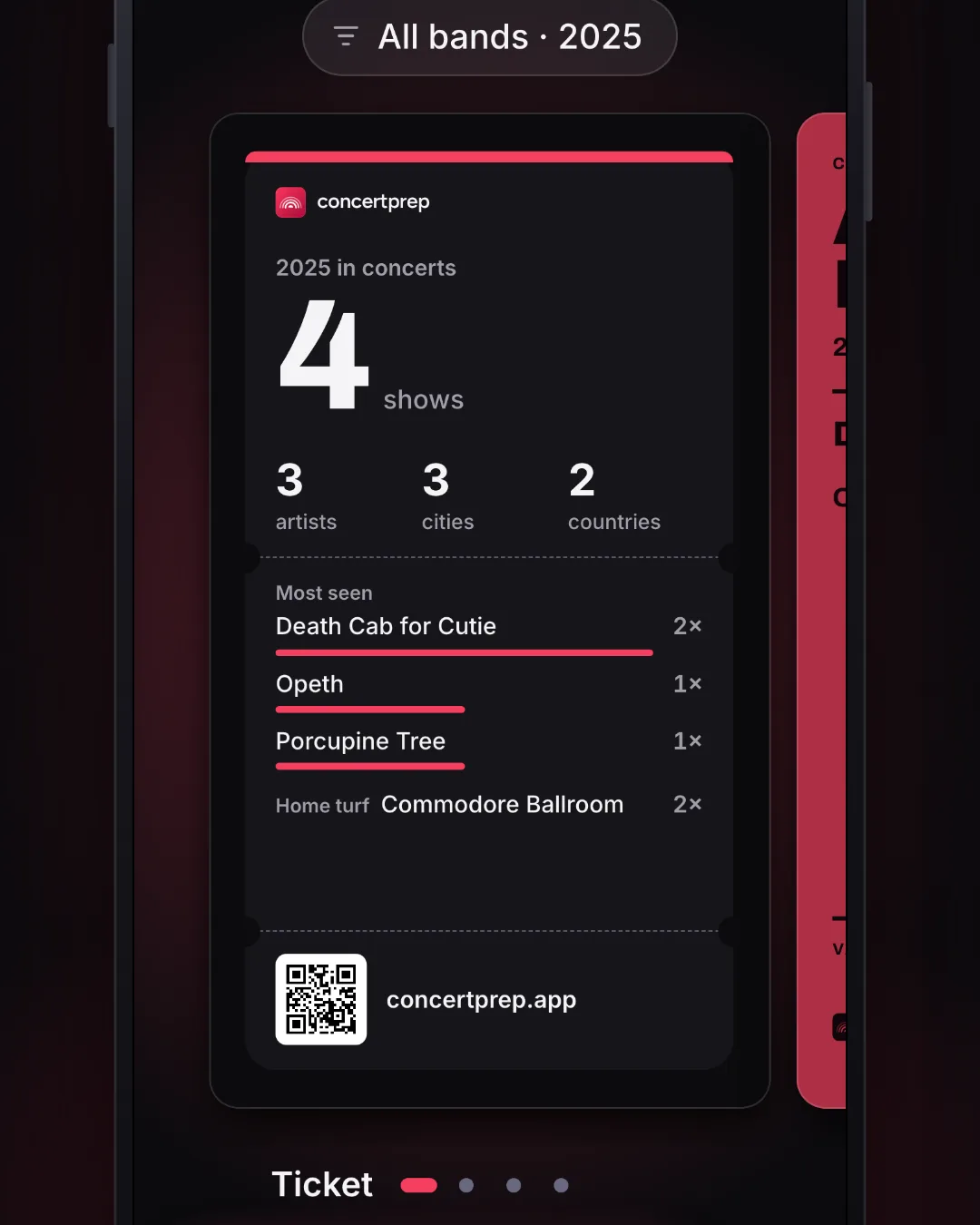
A silent clip. On My concerts, Share opens Share a card. All bands · All time at the top opens the filters, 2025 is picked under When, and Done closes them. The card becomes 2025 in concerts: 4 shows across 3 artists, 3 cities and 2 countries, the bands seen most, and Home turf. The Places dot under the card turns it into the Places look: 3 cities and 2 countries on a globe. Share is tapped, and the card lifts out of the phone as the picture it becomes. The clip ends on the finished card. The shows in it are sample data.
A band card is for one band, like My Opeth shows. It shows:
- how many times you've seen them, and the years;
- your Rarest catch: the song you heard live that they play least often lately;
- your most recent shows with them (4 or 5, as many as fit), with dates and places.
A year card is for one year, like 2025 in concerts. It shows:
- how many shows you went to, and how many artists, cities and countries;
- your Most seen bands (up to 4), with how many times you saw each. If you've seen every band only once, Lately lists your most recent ones instead;
- your Home turf: the venue you went to most, if you went there more than once.
Leave both on All bands and All time, and you get a card called Your concerts. It's like a year card, but for every year you've been to shows.
Pick a band and a year together, and you get that band's card for just that year.
Tick a few bands to make a card of just them.
How do I make a card for one city?
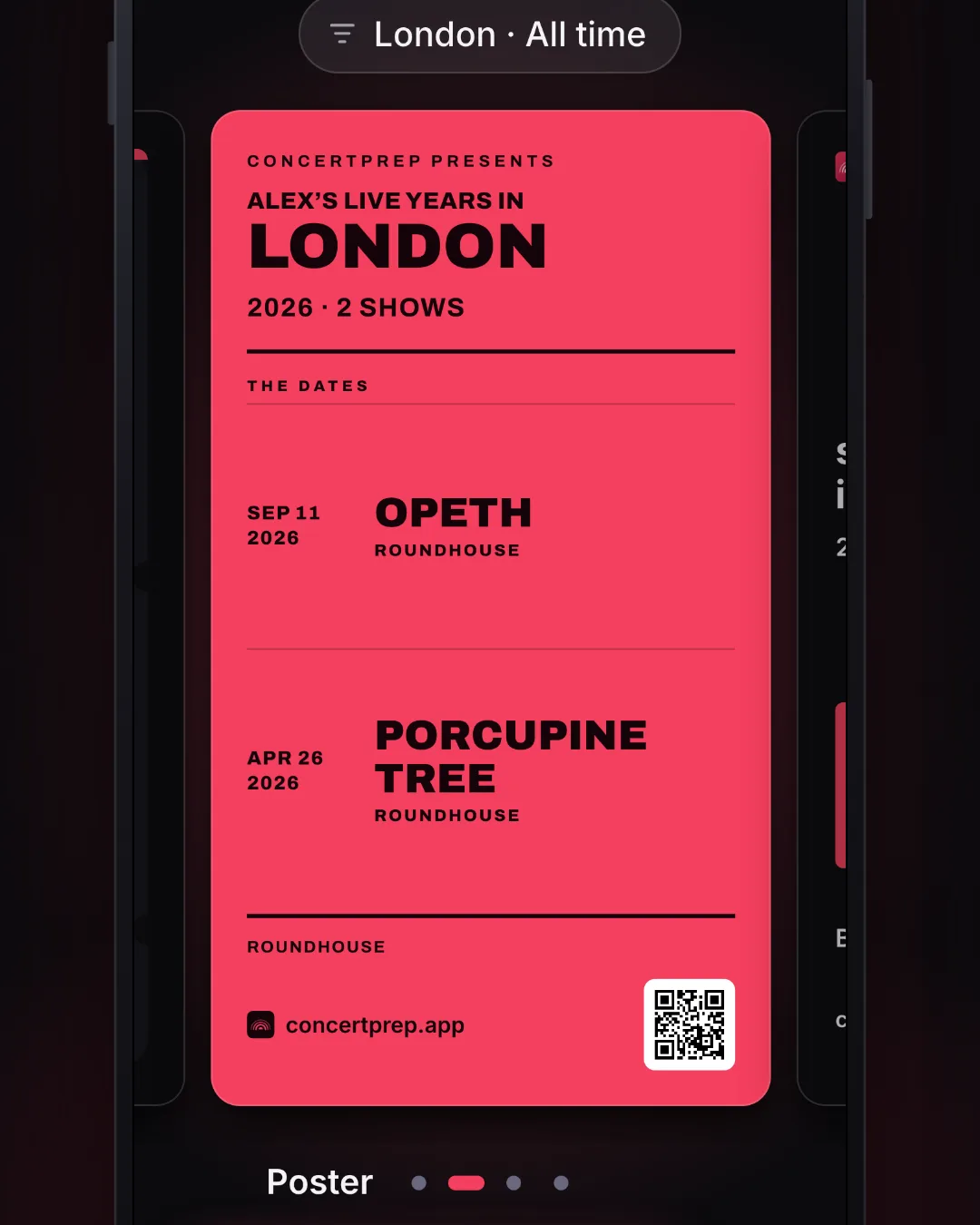
A silent clip. On My concerts, the cities tile opens Cities, a globe and a list of every city. London is tapped, and its page lists the two shows there, with a Share button beside the title. Share opens Share a card already set to London · All time, on the Poster look: Opeth on Sep 11, 2026 and Porcupine Tree on Apr 26, 2026, both at the Roundhouse. Save image is tapped, and the card lifts out of the phone as the picture it becomes. The clip ends on the finished card. The shows in it are sample data.
- Tap Concerts.
- Tap the cities tile, under the big number. Then tap a city in the list.
- Tap Share, next to the city's name. The card opens already set to that city, in the Poster look.
- To keep it, tap Save image.
The card counts only the shows you went to in that city. With a few shows, the Poster lists them by date, with the band and the venue. With one show, it features that night. With many, it lists your bands, the ones you saw most there biggest.
The same Share button is on the page for a band, a year or a country. To pick another place from the card, tap the filter at the top, switch to the places list, and choose one.
How do I save or send it?
- To keep it, tap Save image. In the app, it goes into your Photos. The first time, your phone asks if that's OK. On the website, the picture downloads.
- To send it, tap the share button next to Save image. It opens your phone's share options, so you can post it or send it to a friend. If your browser can't share pictures, the picture downloads instead.
Sometimes a part of the card fills in after a moment. You can still save it right away.
Why can't I pick some years?
A year only shows up if you went to a show that year.
The two lists also match each other, so you never get an empty card. Pick a band, and you only see the years you saw them. Pick a year, and you only see the bands you saw that year.
What does "data from setlist.fm" on the card mean?
Some things on a card come from setlist.fm: the venues, cities and countries, and your rarest catch. The line gives setlist.fm credit for them.
If every show on the card was one you added by hand, those details are your own, and the line isn't there.
The clips on this page use made-up shows, so the line isn't in them.